
This guide covers Single Sign-On authentication in Fiddler, including setup procedures, supported identity providers, and user management workflows.Documentation Index
Fetch the complete documentation index at: https://handbook.fiddler.ai/llms.txt
Use this file to discover all available pages before exploring further.
Overview
Single Sign-On (SSO) authentication allows users to access Fiddler using their existing organizational credentials from identity providers like Okta, Microsoft Entra ID, Google, and Ping Identity. SSO streamlines user access and reduces password management overhead.When to Use SSO Authentication
SSO authentication is ideal for:- Organizations with existing identity providers
- Environments requiring centralized user management
- Compliance requirements mandating enterprise authentication
- Large user bases where manual user provisioning is impractical
How SSO Works with Fiddler
User Provisioning
Automatic User Creation: When users successfully authenticate through your SSO provider for the first time, Fiddler automatically creates their user account with basic profile information. No Manual Creation Required: Unlike email authentication, SSO users don’t need to be manually created in the AuthN console—they gain access automatically upon successful SSO authentication.Note that auto-provisioned users will be created with the Fiddler Org Member role by default. Edit a user’s Organization role in the Access tab of the Settings page.
Authentication Flow
- User Access: User navigates to Fiddler login page
- SSO Redirect: User clicks “Sign in with SSO” and is redirected to your identity provider
- Identity Provider Authentication: User authenticates with their organizational credentials
- Automatic Provisioning: If first login, Fiddler creates the user account automatically
- Access Granted: User gains access to Fiddler as an Org Member and potentially additional privileges if Group Syncing is implemented
Supported Identity Providers
Fiddler supports major enterprise identity providers through industry-standard protocols:| Identity Provider | Supported Protocols | Configuration Guide |
|---|---|---|
| Okta | OIDC | Okta OIDC Integration |
| Okta | SAML | Okta SAML Integration |
| Microsoft Entra ID (formerly Azure AD) | OIDC | Azure AD OIDC Integration |
| OIDC | Google OIDC Integration | |
| Ping Identity | SAML | Ping Identity SAML Integration |
SSO Configuration Process
Prerequisites
Before configuring SSO, ensure you have:- Administrative access to your identity provider
- Access to the Fiddler AuthN management console
- Access to the AuthN user acount having the “Org Owner” role
- Required information from your identity provider (client IDs, metadata URLs, certificates)
General Configuration Steps
These are the basic steps to follow for most IdPs. Follow the specific guide for your required IdP and protocol. Step 1: Access Authentication Management Console-
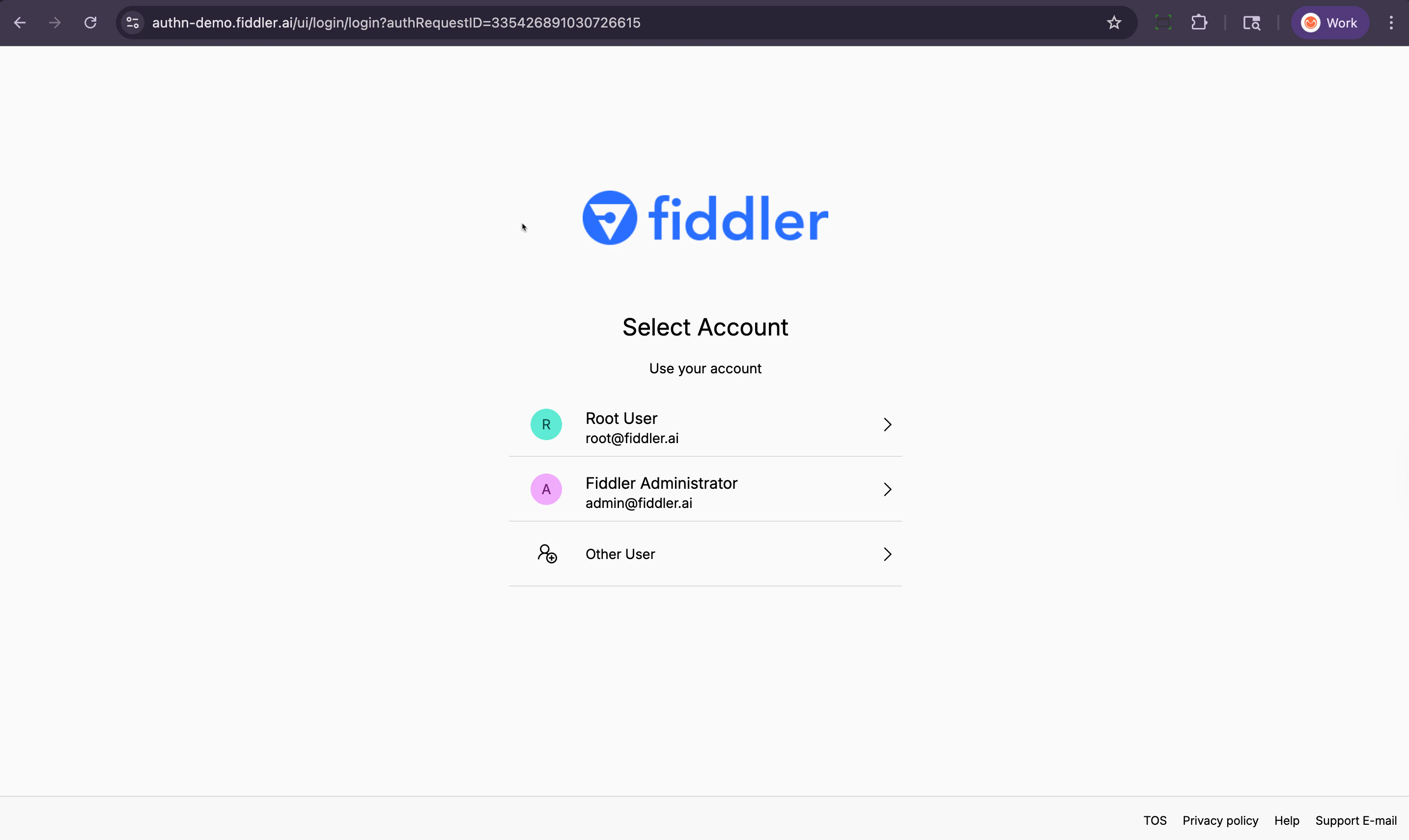
Log into the AuthN authentication management console
-
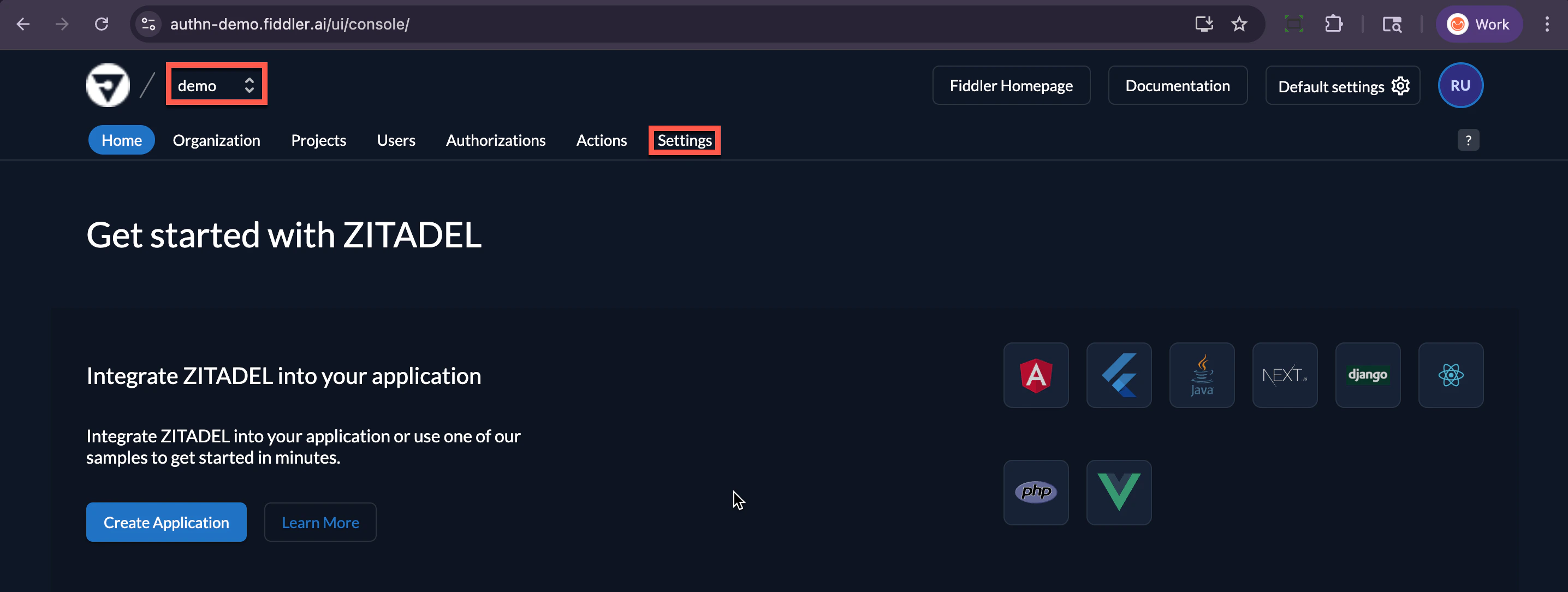
Select your customer organization from the dropdown
-
Navigate to Settings > Login and Access > Identity Providers
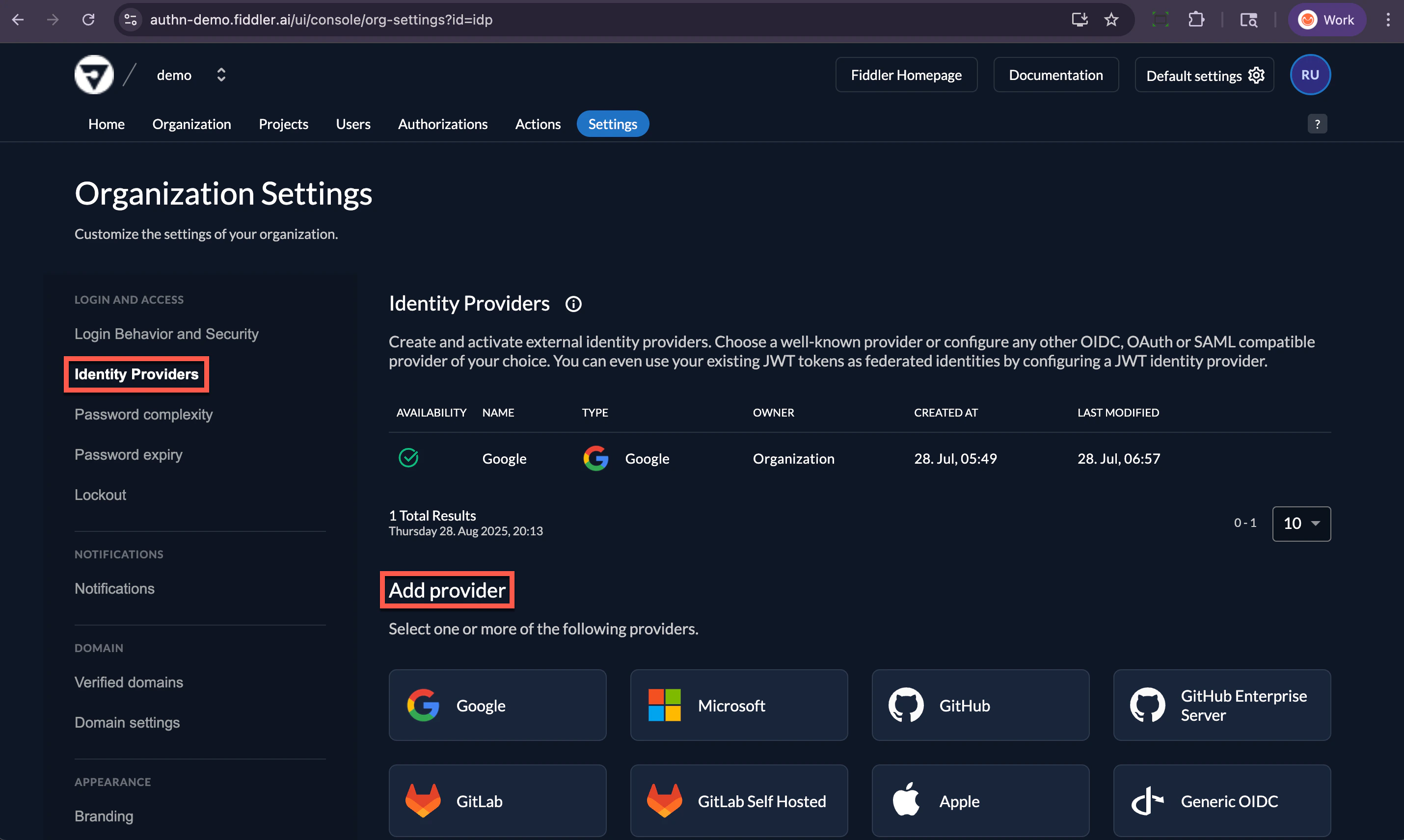
- Select your desired provider by selecting its icon in the Add Provider section
- Provider Name: Enter a descriptive name for your SSO integration
- Copy AuthN Settings: If required, copy AuthN settings to use in creating the application in your IdP
- IdP Required Fields: Populate your IdP’s required fields
- Connection Details: Copy required settings from your IdP:
- Client ID or Application ID
- Metadata URL or Issuer URL
- Client Secret (if required)
- Certificate information (for SAML)
- ✅ Enable “Automatic creation” - Creates new users on first successful login
- ✅ Enable “Automatic update” - Updates user information from identity provider
- ✅ Select “Check for existing username” - Links identities to existing accounts when appropriate
- First Name (
firstName,given_name) - Last Name (
lastName,family_name) - Email Address (
email)
- Groups (
groups) - For automated group-based access control see Mapping LDAP Groups guide
- Paste the Fiddler-provided script into the text area
- Paste the script name into the Name text box
- Set the Trigger Type option per the guide
- Set the Actions dropdown option per the guide
- Save your SSO configuration
- Test authentication with a sample user account
- Verify user information is properly mapped
- Confirm automatic provisioning works as expected
Group Synchronization
Supported Providers
Group synchronization is available for these identity providers:- Okta (OIDC and SAML)
- Microsoft Entra ID (OIDC with proper configuration)
- Ping Identity (SAML)
User Management with SSO
Automatic User Provisioning
First Login Process:- User authenticates successfully through SSO
- Fiddler automatically creates user account with information from the IdP
- User receives default organization member role (the very first user to login will be assigned the Org Admin role)
- Additional permissions can be assigned through Fiddler teams or individual roles
- User information automatically updates from the IdP on each login
- Group memberships sync automatically (if configured)
- User status changes (deactivation/reactivation) can be managed through the IdP (note that Fiddler deactivates user accounts rather than deletes)
Mixed Authentication Environments
Combining SSO and Email Authentication
Organizations can use both SSO and email authentication simultaneously:- SSO Users: Automatically provisioned from identity provider
- Email Users: Manually added through the AuthN management console
- Separate Login Paths: Users choose appropriate authentication method at login if more than one path has been enabled
User Account Constraints
- Single Authentication Method: Each user account uses either SSO or email authentication, not both
- Account Linking: Existing email-authenticated users can be linked to SSO identities under specific conditions
Troubleshooting Common Issues
Authentication Failures
Redirect URI Mismatch:- Verify redirect URI in identity provider matches:
{fiddler_url}/api/sso/{provider}/callback - Check for HTTP vs. HTTPS mismatches
- Monitor client secret expiration dates (typically 6-24 months)
- Update expired certificates or secrets in both identity provider and Fiddler configuration
- Verify required attributes (
firstName,lastName,email) are included in authentication response - Check attribute name consistency between identity provider and Fiddler configuration
User Provisioning Issues
Users Not Auto-Provisioned:- Confirm “Automatic creation” setting is enabled
- Verify user has appropriate permissions in identity provider
- Check authentication logs for error messages
- Validate attribute mappings in identity provider configuration
- Ensure identity provider includes required claims in authentication tokens
- Verify
groupsattribute is included in identity provider claims - Check that corresponding teams exist in Fiddler
- Confirm group names match between identity provider and Fiddler teams
Next Steps
After reading this overview:- Choose Your Provider: Review the provider-specific integration guides
- Plan Implementation: Coordinate with your identity provider administrator
- Test Configuration: Set up a test environment before production deployment
- Train Users: Provide documentation on the new authentication process
Note: SSO configuration requires coordination between Fiddler administrators and identity provider administrators. Plan accordingly for configuration, testing, and rollout phases.