
Learn how to integrate Fiddler with Google for seamless Single Sign-On (SSO) authentication using the OpenID Connect (OIDC) protocol.Documentation Index
Fetch the complete documentation index at: https://handbook.fiddler.ai/llms.txt
Use this file to discover all available pages before exploring further.
Overview
This integration allows your users to access Fiddler using their existing Google accounts. Users are automatically provisioned in Fiddler on their first successful login, eliminating the need for manual user invitations. Note: Google OIDC integration does not support group synchronization. Users will be provisioned individually without automated group-based access control.Prerequisites
Before starting, ensure you have:- Google Cloud Console Access: Permissions to create and configure OAuth 2.0 applications
- Fiddler Administrator Access: “Org Owner” or “Org User Manager” role in Fiddler’s authentication management console
- Deployment Information: Your Fiddler deployment base URL
- Google Cloud Project: An active Google Cloud project or the ability to create one
Step 1: Configure Google Cloud OAuth 2.0 Client
Access Google Cloud Console
- Navigate to the Google Cloud Console
- Select an existing project or create a new one
- Go to APIs & Services > Credentials
Enable Required APIs
If not already enabled, you may need to enable:- Google+ API (for profile information)
- OAuth consent screen configuration
Configure OAuth Consent Screen
- Navigate to APIs & Services > OAuth consent screen
- Choose Internal (for Google Workspace organizations) or External (for broader access)
- Fill in the required information:
- Application name: Enter a descriptive name (e.g., “Fiddler SSO”)
- User support email: Your support email address
- Application logo: Optional Fiddler or organization logo
- Authorized domains: Add your Fiddler deployment domain
- Developer contact email: Your technical contact email
- Add required scopes:
openidemailprofile
- Save the configuration
Create OAuth 2.0 Client ID
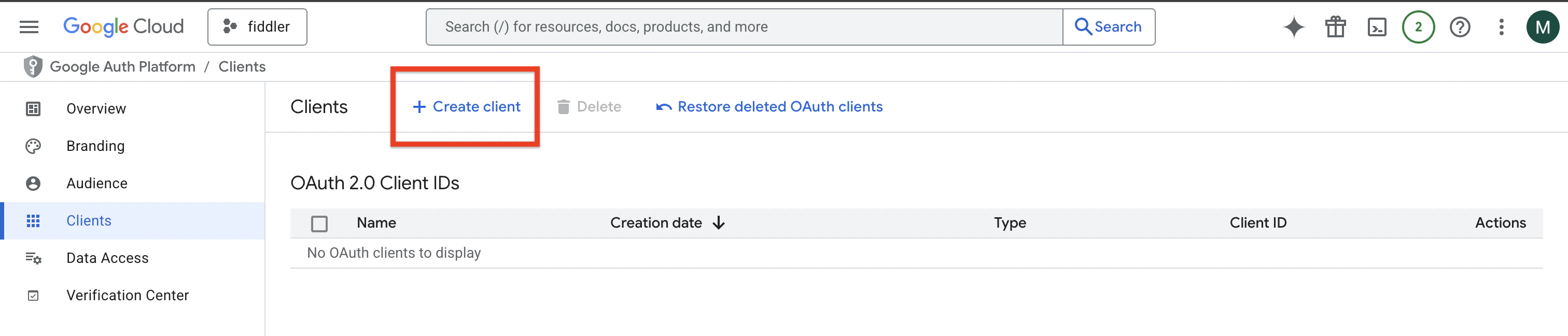
- Navigate to APIs & Services > Credentials
- Click Create Credentials > OAuth 2.0 Client ID
- Configure the client:
- Application type: Select Web application
- Name: Enter a descriptive name (e.g., “Fiddler SSO Client”)
- Authorized redirect URIs: Add
{base_url}/api/sso/google/callback(replace{base_url}with your Fiddler deployment URL)
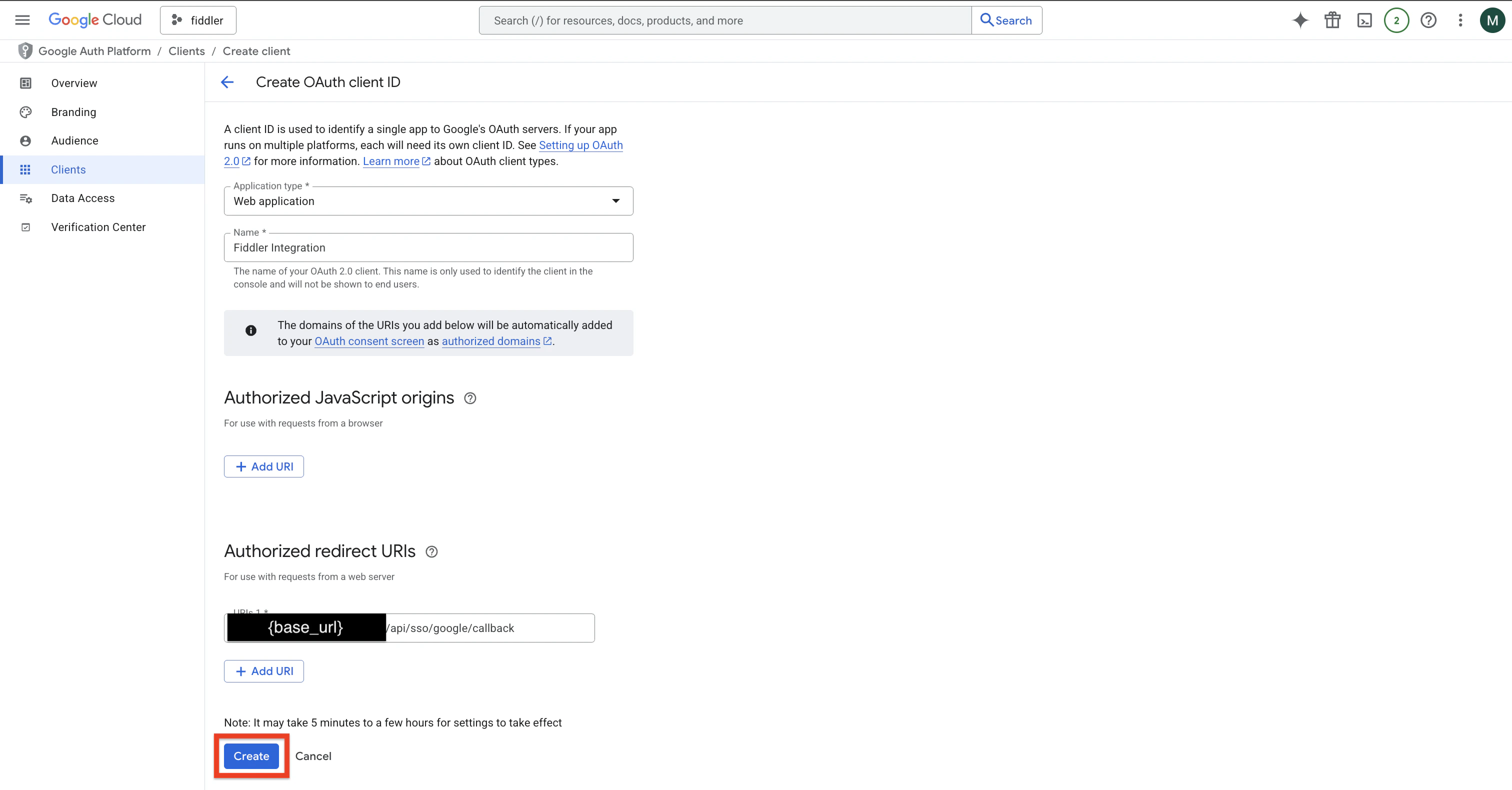
- Click Create
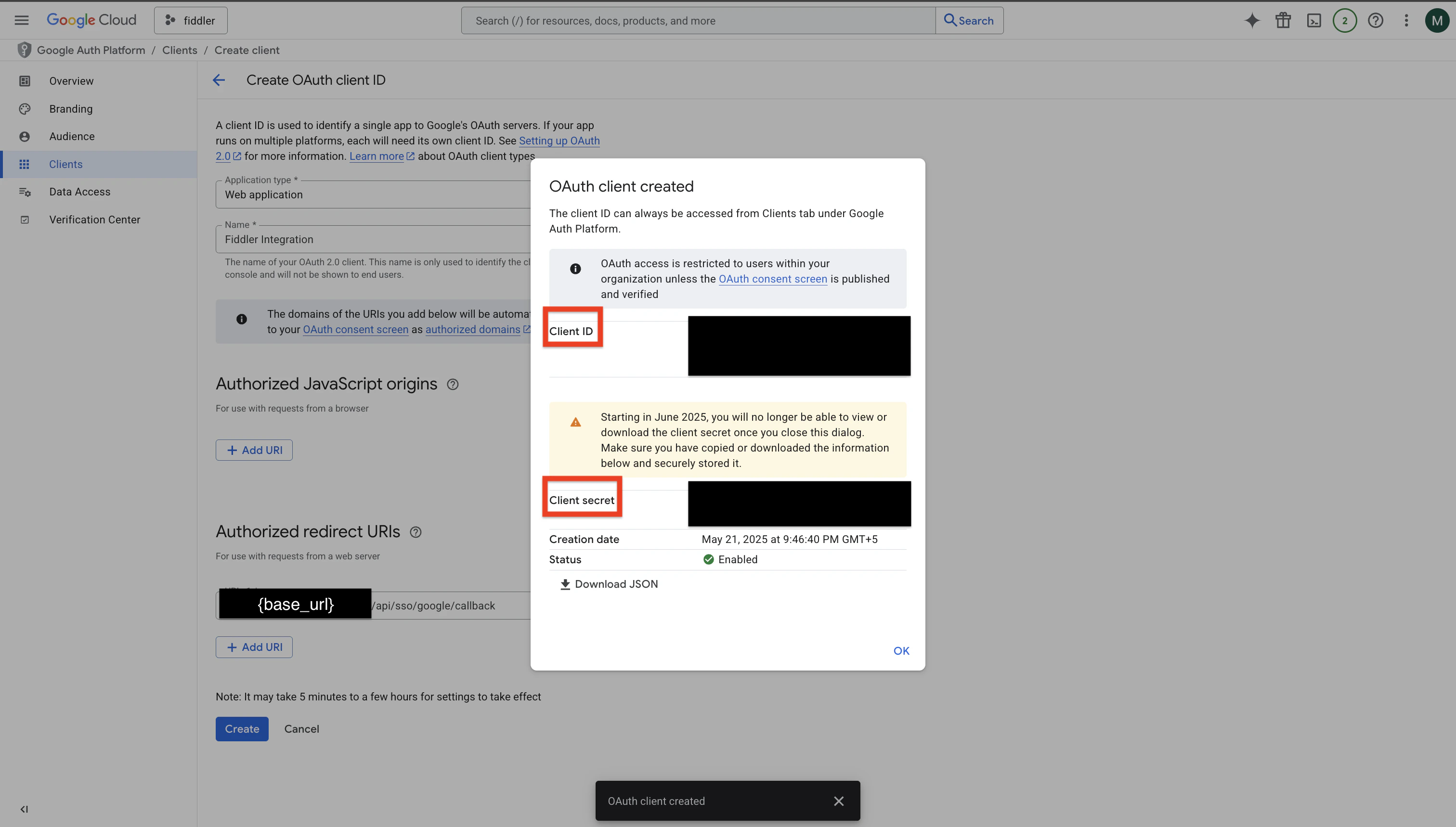
Collect Client Credentials
After creation, copy the following information:- Client ID: The OAuth 2.0 client ID
- Client Secret: The OAuth 2.0 client secret
Step 2: Configure Fiddler Authentication Console
Access Authentication Management Console
- Log into the Fiddler authentication management console
- Select your customer organization from the dropdown
- Navigate to Settings > Login and Access > Identity Providers
- Click Add Provider
Configure Google Integration
Provider Configuration:- Provider name: Enter a descriptive name (e.g., “Google OIDC”)
- Provider type: Select Google or OIDC provider type
- Client ID: Enter the Client ID from your Google OAuth application
- Client Secret: Enter the Client secret from your Google OAuth application
- Metadata URL:
https://accounts.google.com/.well-known/openid-configuration(Google’s standard OIDC discovery document)
- ✅ Enable “Automatic creation” - Creates new users on first successful login
- ✅ Enable “Automatic update” - Updates user information from Google
- ✅ Select “Check for existing username” - Links identities to existing accounts when appropriate
Configure Attribute Mapping
Ensure proper mapping of user attributes from Google to Fiddler: Required Mappings:- First Name:
given_name - Last Name:
family_name - Email:
email
Configure Scopes
In the identity provider configuration, ensure the scope list includes:openid(required for OIDC)profile(for user profile information)email(for email address)
Step 3: Test and Validate Integration
Test Authentication Flow
- Save your SSO configuration in the authentication management console
- Navigate to your Fiddler login page
- Click “Sign in with SSO”
- You should be redirected to Google for authentication
- After successful Google authentication, you should be redirected back to Fiddler
Verify User Provisioning
- Log in with a test Google account
- Verify the user account is automatically created in Fiddler
- Check that user information (name, email) is properly populated
- Confirm the user has appropriate default permissions
Advanced Configuration
Google Workspace Integration
For Google Workspace organizations: Domain Restrictions:- Configure the OAuth consent screen to limit access to your organization’s domain
- Set up domain-wide delegation if needed for administrative access
- Users will be provisioned individually based on their Google account information
- Manual role assignment is required through Fiddler’s interface
Multiple Domain Support
If your organization uses multiple Google domains:- Configure authorized domains in the OAuth consent screen
- Users from all authorized domains can authenticate
- Consider using email domain validation in Fiddler for access control
Custom Branding
Customize the OAuth consent screen:- Add your organization’s logo and branding
- Provide clear application descriptions
- Include appropriate support and privacy policy links
Limitations
No Group Synchronization
Important Limitation: Google OIDC integration does not support automatic group synchronization with Fiddler teams because:- Google does not include group membership in standard OIDC tokens
- Google’s group APIs require additional configuration and permissions
- Group information varies significantly between Google Workspace and personal Google accounts
- Manually assign users to Fiddler teams after first login
- Use email domain-based access control policies
- Implement role assignment workflows through Fiddler’s interface
Account Type Considerations
Google Workspace vs. Personal Accounts:- Google Workspace accounts provide more consistent organizational information
- Personal Google accounts may have limited profile information
- Consider restricting access to specific account types based on your security requirements
Troubleshooting
Common Issues
Authentication Failures:- Redirect URI Mismatch: Verify the redirect URI in Google Cloud Console exactly matches
{base_url}/api/sso/google/callback - Client Secret Issues: Ensure the client secret is correctly copied and hasn’t been regenerated
- Scope Problems: Verify all required scopes (
openid,profile,email) are configured - Consent Screen Issues: Check that the OAuth consent screen is properly configured and published
- Users Not Auto-Created: Verify “Automatic creation” is enabled in Fiddler configuration
- Missing User Information: Check that Google account provides required profile information
- Email Conflicts: Ensure no existing Fiddler users have the same email address
- Project Verification: Some configurations may require Google Cloud project verification
- API Quotas: Check for API usage limits in Google Cloud Console
- Domain Authorization: Verify authorized domains are properly configured
Common Error Messages
- redirect_uri_mismatch: The redirect URI in the request doesn’t match any registered URIs
- invalid_client: Client authentication failed due to incorrect credentials
- access_denied: User denied access or administrator restrictions apply
- unauthorized_client: Client not authorized to use this authorization flow
Getting Help
For additional assistance:- Check authentication logs in the Fiddler authentication management console
- Review Google Cloud Console error logs and quotas
- Verify OAuth consent screen configuration and approval status
- Contact your Fiddler representative with specific error messages and Google client configuration details
Reference Documentation
For detailed configuration guidance, refer to the official documentation:- Google OIDC Configuration Guide - Comprehensive setup instructions
- General SSO Authentication Guide - Overview of SSO concepts and troubleshooting
- Google OAuth 2.0 Documentation - Official Google setup guide
- Google OpenID Connect Documentation - Technical details
Important Notes
- Automatic User Provisioning: Users are automatically created on first successful login—no manual invitations required
- Data Storage: Fiddler stores only the user’s first name, last name, email address, and OIDC token from Google
- API Access: For programmatic API access, users must create access tokens from the “Credentials” tab in Fiddler’s Settings page
- Single Authentication Method: Users can only authenticate via either SSO or email authentication, not both
- No Group Sync: Google OIDC does not support automatic group synchronization with Fiddler teams
- Account Types: Both Google Workspace and personal Google accounts are supported, but Workspace accounts provide more consistent organizational information
Next Steps
After successful integration:- Train Users: Provide guidance on accessing Fiddler through Google SSO
- Manual Role Assignment: Set up processes for assigning users to appropriate Fiddler teams and roles
- Access Control: Implement email domain-based or manual access control policies
- Monitor Usage: Review authentication logs and user access patterns
- Consider Alternatives: For organizations requiring group synchronization, consider alternative identity providers like Okta or Microsoft Entra ID
Alternative Solutions
If group synchronization is critical for your organization, consider:- Okta OIDC: Full group synchronization support with flexible group mapping
- Microsoft Entra ID: Comprehensive group sync and enterprise features
- Ping Identity: SAML-based group synchronization capabilities
- Hybrid Approach: Use Google for authentication and manual processes for group management