
Documentation Index
Fetch the complete documentation index at: https://handbook.fiddler.ai/llms.txt
Use this file to discover all available pages before exploring further.

Overview
Evaluator Rules provide the configuration layer between your evaluators and your application’s telemetry data. When properly configured, they automatically assess the quality, safety, and performance of your GenAI application based on real-time span data.What Are Evaluator Rules?
An Evaluator Rule determines how and when an evaluator runs against your application’s spans. Each rule consists of four key components:- Evaluator Configuration - The evaluator definition, including provider, model, and prompt
- Input Field Mapping - How span data is passed to the evaluator’s input variables
- Application Rules - Conditions that determine which spans qualify for evaluation
- Backfill Configuration - Whether to apply evaluations to historical data
How Evaluator Rules Work
When a new span is created in your application:- The system checks all active Evaluator Rules
- Each rule evaluates whether its Application Rules match the span’s attributes
- If a match is found, the system extracts data from the span using Input Field Mappings
- The evaluator runs with the mapped data as input
- Results are stored and made available in dashboards and analytics
Key Concepts
Evaluators
An Evaluator is a configured model or function that performs analysis over spans. It can classify, score, or assess the quality of data generated by your application. Evaluators are defined by:- Provider - The LLM provider (OpenAI, Anthropic, Gemini, Fiddler)
- Model - The specific model to use for evaluation
- Credentials - Authentication to the provider (configured via LLM Gateway)
- Prompt or Logic - The evaluation instructions or function
Note: Evaluators are defined at the organization level and shared across all projects in your organization.
Input Mappings
Input Mappings define how data flows from spans into evaluators. Each variable used in an evaluator’s prompt (such as{{input}} or {{context}}) must be mapped to a field or attribute in the span data.
For example, if your evaluator prompt includes {{puppynoises}}, you must map that variable to a span attribute like fiddler.contents.gen_ai.llm.input.user.
Application Rules
Application Rules specify filtering conditions that determine which spans qualify for evaluation. Rules use AND/OR logic:- AND condition across categories - A span must match ALL rule categories
- OR condition within a category - A span can match ANY value within a single category
Backfill
Backfill controls whether evaluations apply retroactively to existing historical data or only to spans created after the rule is configured.Create an Evaluator Rule
Prerequisites
Before creating an Evaluator Rule, ensure you have:- Active Application - A GenAI application with span data
- Configured Evaluators - Organization-level evaluators ready to use
- LLM Gateway Credentials - If using custom LLM-based evaluators (see LLM Gateway Configuration)
Step-by-Step Guide
Select an Evaluator
Navigate to your application in the Fiddler UI and access the evaluator configuration: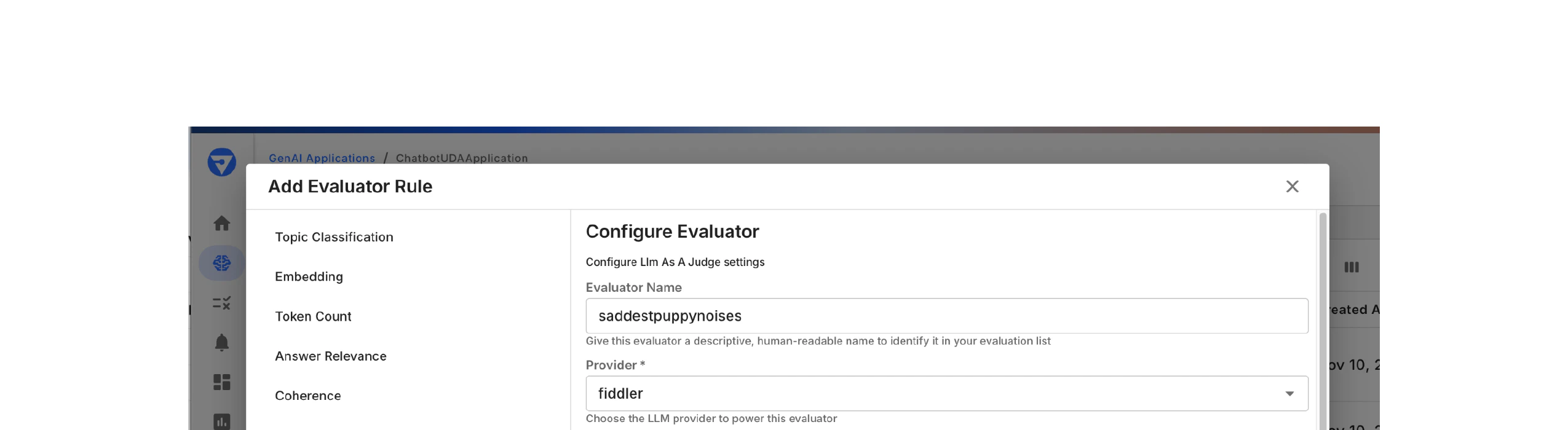
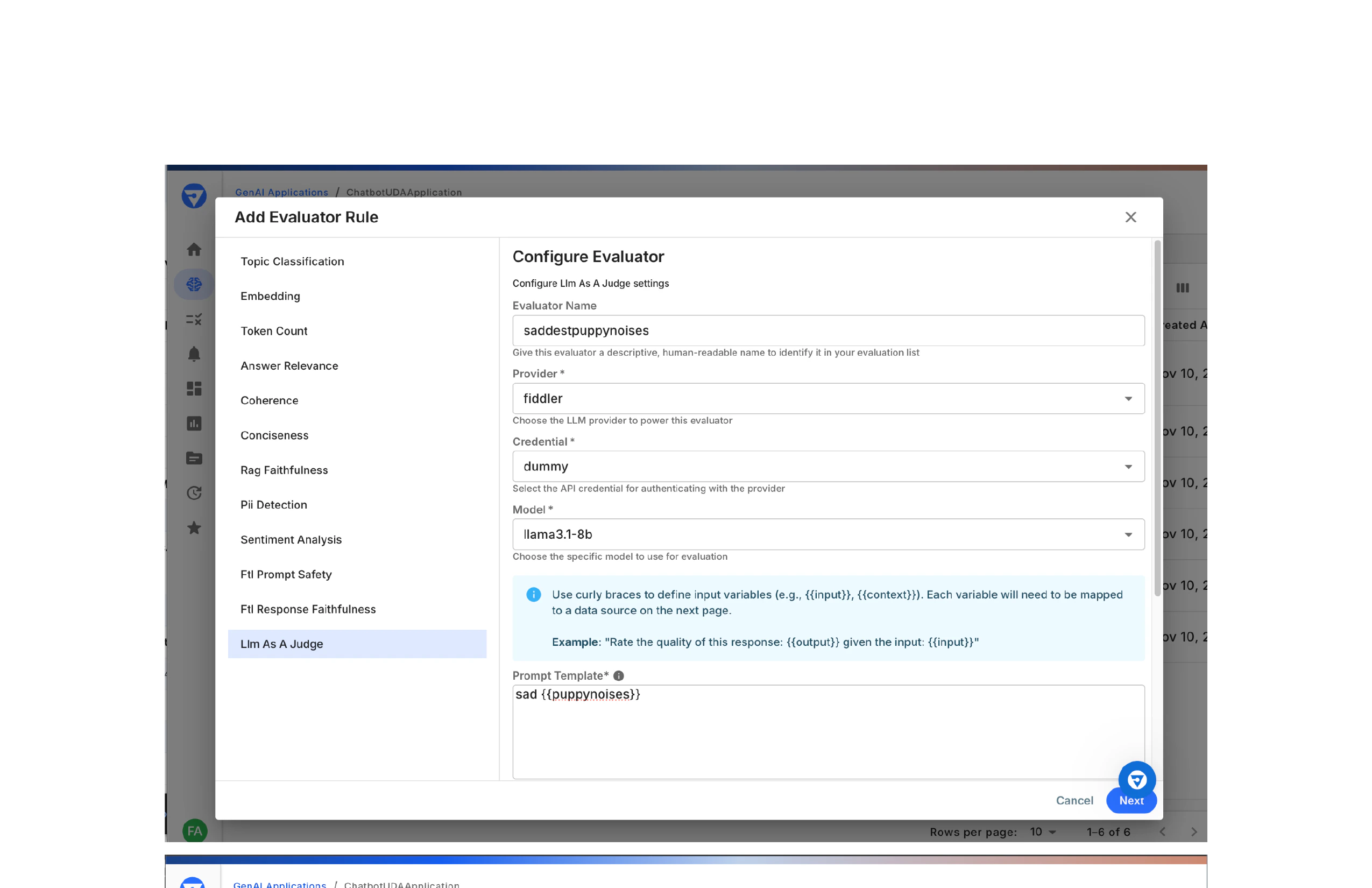
- Click the Evaluator Rules tab
- Click Add Rule in the top-right corner
- The Add Evaluator Rule dialog opens with available evaluators
- Topic Classification
- Embedding
- Token Count
- Answer Relevance
- Coherence
- Conciseness
- Context Relevance
- RAG Faithfulness
- PII Detection
- Sentiment Analysis
- F# Prompt Safety
- F# Response Faithfulness
- Llm As A Judge (custom evaluator)
- Enter a descriptive name (e.g.,
saddestpuppynoises)
- Select the LLM provider (e.g.,
fiddler)
- Choose the API credential for authentication (e.g.,
dummy)
- Select the specific model (e.g.,
llama3.1-8b)
- Enter evaluation instructions with input variables using curly braces:
{{variableName}} - Example:
sad {{puppynoises}}
- Define the expected response format in JSON
Tip: For Fiddler-provided evaluators, the evaluation method and fields are predetermined. You only need to map inputs and configure application rules.
Map Input Fields
Map each evaluator input variable to a span attribute.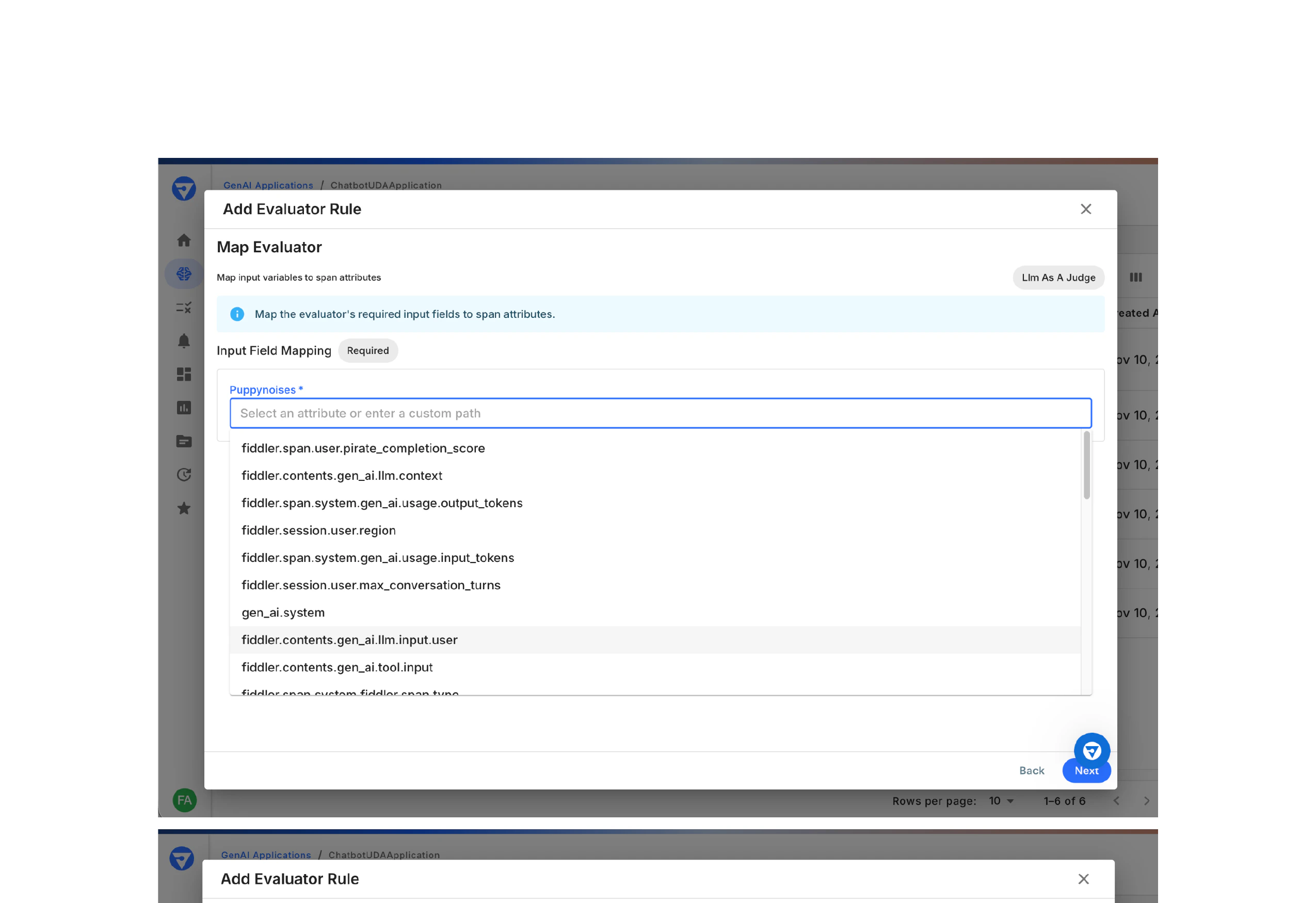
- In the Map Evaluator step, you’ll see all required input variables
- For each variable (e.g.,
puppynoises):- Click the Select an attribute or enter a custom path dropdown
- Choose from available span attributes or enter a custom path manually
fiddler.span.user.pirate_completion_scorefiddler.contents.gen_ai.llm.contextfiddler.span.system.gen_ai.usage.output_tokensfiddler.session.user.regionfiddler.span.system.gen_ai.usage.input_tokensfiddler.session.user.max_conversation_turnsgen_ai.systemfiddler.contents.gen_ai.llm.input.userfiddler.contents.gen_ai.tool.input- And many more…
- Repeat for all input variables
- Click Next to continue
All required input variables must be mapped. The evaluator cannot run without complete input mappings.
Define Application Rules
Specify which spans to evaluate by setting filter conditions.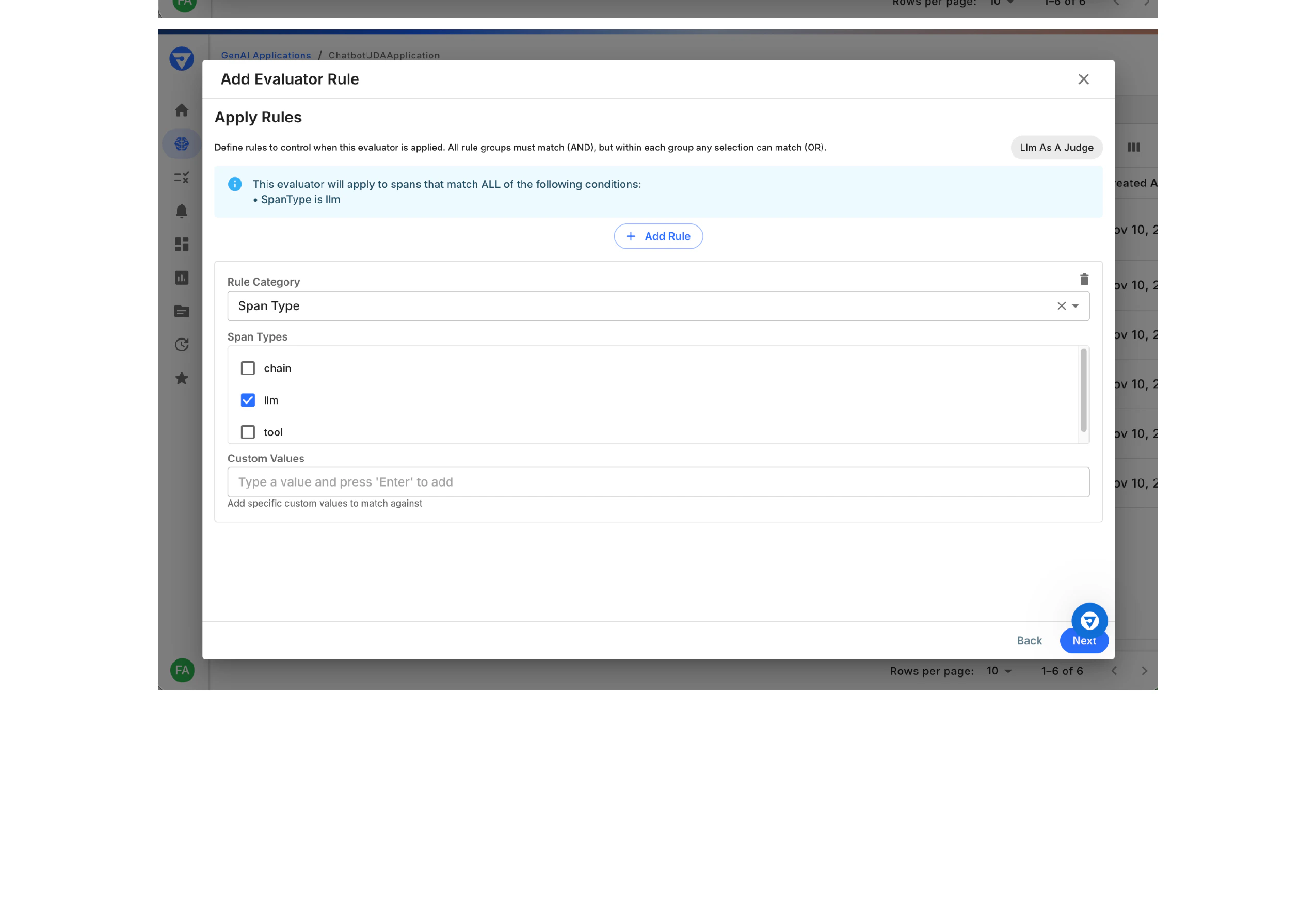
- In the Apply Rules step, you’ll see the current rule conditions
- The info box shows: “This evaluator will apply to spans that match ALL of the following conditions:”
- Click Add Rule to add a new condition category
- Select the attribute type (e.g.,
Span Type)
- Choose which values to match:
chainllm✓tool
- (Optional) Add specific custom values to match
- AND condition across categories - A span must match ALL rule categories
- OR condition within a category - A span can match ANY value within a single category
- Add multiple rule categories as needed
- Click Next to continue
Configure Backfill and Review
Determine whether to apply the evaluator to existing historical data and review your configuration.Backfill ConfigurationChoose one of three options:Option 1: Apply to all past data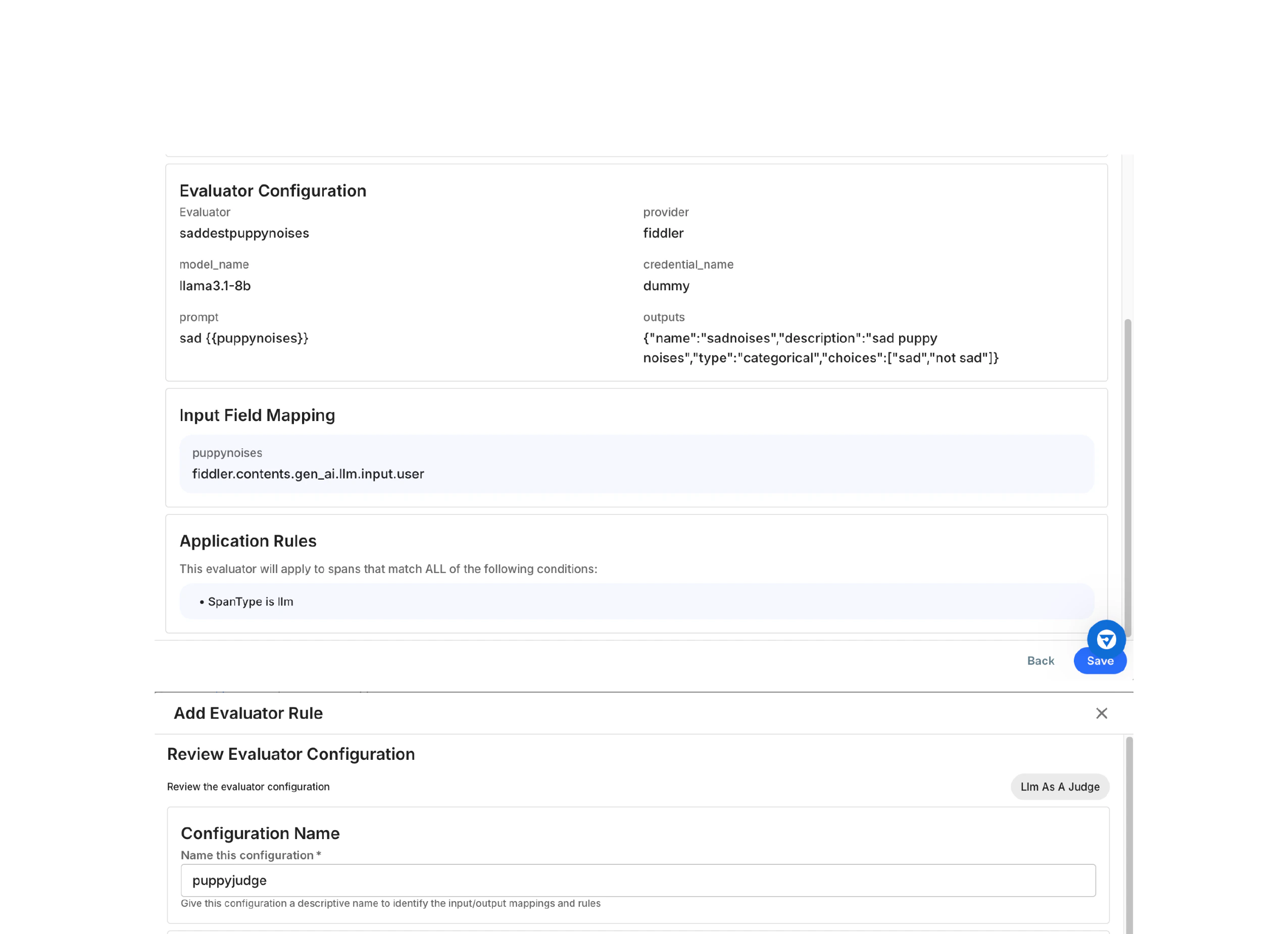
- Evaluates all existing spans in the dataset
- Use when: You need complete historical coverage
- Warning: May take significant time for large datasets
- Evaluates spans created after a chosen date
- Use when: You want partial historical coverage
- Select the start date using the date picker
- Evaluates only new spans created after activation
- Use when: You only need a forward-looking evaluation
- Best for: Testing new evaluators or reducing processing time
- Evaluator name, model, provider, credential
- Prompt template and expected outputs
- Variable → Span attribute mappings
- Span matching conditions
Performance Tip: Start with “No backfill” to test your evaluator configuration. Once validated, you can create a new rule with backfill enabled.
Save and Activate
Complete the configuration and activate your evaluator rule.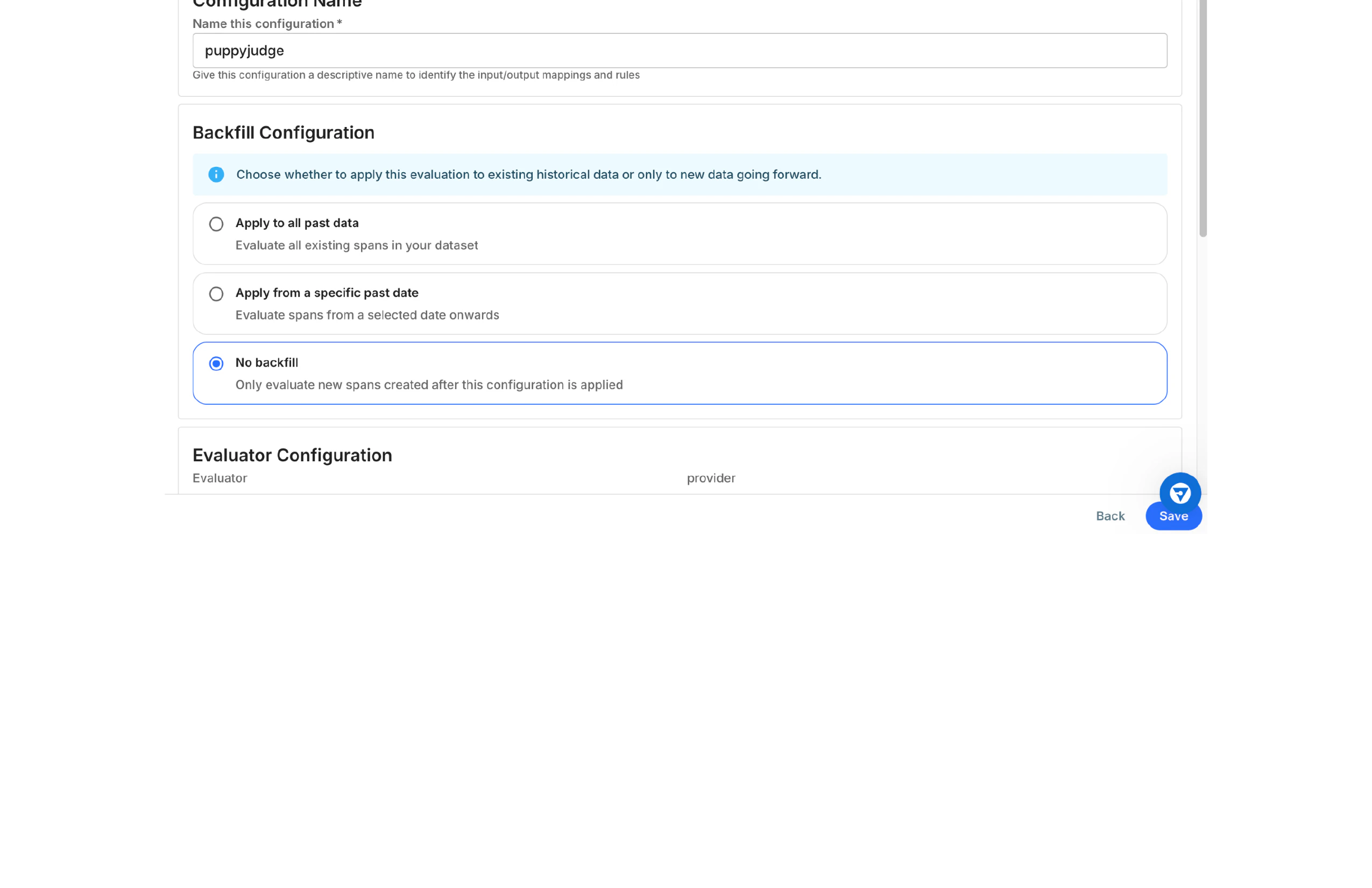
- Configuration Name
- Enter a descriptive name for this evaluator rule (e.g.,
puppyjudge) - This name identifies the rule in your application’s Evaluator Rules list
- Enter a descriptive name for this evaluator rule (e.g.,
- Finalize:
- Click Save to activate the rule
- Or click Back to modify any settings
- Or click Cancel to discard the configuration
Manage Evaluator Rules
View Active Rules
Navigate to the Evaluator Rules tab in your application to see all configured rules. The Evaluator Rules table displays:| Column | Description |
|---|---|
| Rule Name | The configuration name you assigned |
| Rule | Span-matching conditions (e.g., “SpanName undefined: ChatOpenAI”) |
| Input Mappings | Mapped input fields (e.g., “CONTEXT: gen_ai.llm.con…”) |
| Outputs | Expected output fields (e.g., “faithful_prob”, “spans”) |
| Status | Active or Inactive |
| Created At | Date the rule was created |
Activate or Deactivate a Rule
Toggle a rule’s status without deleting it:- Locate the rule in the Evaluator Rules table
- Click the Status toggle to activate or deactivate
- Active - Rule is running on matching spans
- Inactive - Rule is paused and not evaluating new spans
Delete a Rule
Remove a rule permanently:- Locate the rule in the Evaluator Rules table
- Click the delete icon (trash can) at the end of the row
- Confirm the deletion when prompted
Best Practices
Evaluator Configuration
- Use Descriptive Names - Name evaluators and rules clearly (e.g.,
rag_faithfulness_prodinstead ofrule1) - Test Before Backfill - Create rules without backfill first, validate results, then create a new rule with backfill if needed
- Version Your Prompts - Include version identifiers in custom judge names (e.g.,
topic_classifier_v2)
Input Mapping
- Validate Paths - Ensure span attributes exist before mapping
- Use Consistent Paths - Standardize attribute naming across your application
- Document Custom Paths - Keep a reference of custom attribute paths for your team
Application Rules
- Start Broad, Refine Later - Begin with simple rules, add complexity as needed
- Avoid Over-Filtering - Don’t create rules so specific that they match too few spans
- Test Rule Logic - Verify spans are matching as expected using span search
Performance Optimization
- Limit Backfill Scope - Use date-based backfill instead of “all past data” for large datasets
- Monitor Evaluation Latency - Track how long evaluations take and optimize prompts if needed
- Batch Similar Rules - Group related evaluations to reduce overhead
Troubleshooting
Evaluator Not Running
Issue: Rule is active but not producing results. Solutions:- Verify Application Rules match actual span attributes
- Check that all input mappings point to valid span fields
- Ensure LLM Gateway credentials are valid and not expired
- Review span data to confirm matching spans exist
Missing Input Data
Issue: Evaluator fails due to missing input values. Solutions:- Verify the span attribute path is correct
- Check that the attribute exists in your span schema
- Ensure spans contain data for the mapped field
- Use a different attribute or add the field to your instrumentation
Backfill Taking Too Long
Issue: Historical evaluation is processing slowly. Solutions:- Use date-based backfill instead of all past data
- Start with recent data and expand the date range gradually
- Consider creating multiple rules for different time periods
- Deactivate unnecessary rules to free up processing capacity
Unexpected Evaluator Results
Issue: Evaluator produces unexpected scores or classifications. Solutions:- Review the evaluator prompt template for clarity
- Verify input mappings are passing the correct data
- Test the evaluator with sample data outside Fiddler
- Check for prompt ambiguity or missing context
- Adjust the prompt and create a new rule version
Related Documentation
- LLM Gateway Configuration - Configure LLM provider credentials
- Fiddler Evals SDK - Create and manage evaluators programmatically
- Custom Evaluators - Build custom evaluation logic
- Application Monitoring - Monitor your GenAI applications