
Instrument your LangGraph or LangChain application with the Fiddler LangGraph SDK in under 10 minutes.Documentation Index
Fetch the complete documentation index at: https://handbook.fiddler.ai/llms.txt
Use this file to discover all available pages before exploring further.
What You’ll Learn
By completing this quick start, you’ll:- Set up monitoring for a LangGraph or LangChain application
- Send your first traces to Fiddler
- Verify data collection in the Fiddler dashboard
- Understand basic conversation tracking
Prerequisites
Prerequisites
Before you begin, ensure you have:
- Python 3.10 or higher (up to Python 3.13)
- Valid Fiddler account with access to your instance
- A LangGraph or LangChain application ready for instrumentation
- Network connectivity to your Fiddler instance
Version Compatibility
Version Compatibility
Supported Python Versions:
- Python 3.10, 3.11, 3.12, or 3.13
- LangGraph/LangChain: >= 0.3.28 and <= 1.1.0
opentelemetry-api(>= 1.19.0, <= 1.39.1)opentelemetry-sdk(>= 1.19.0, <= 1.39.1)opentelemetry-instrumentation(>= 0.40b0, <= 0.60b1)opentelemetry-exporter-otlp-proto-http(>= 1.19.0, <= 1.39.1)langgraph(>= 0.3.28, <= 1.1.0)langchain(>= 0.3.26)
Set Up Your Fiddler Application
-
Create your application in Fiddler
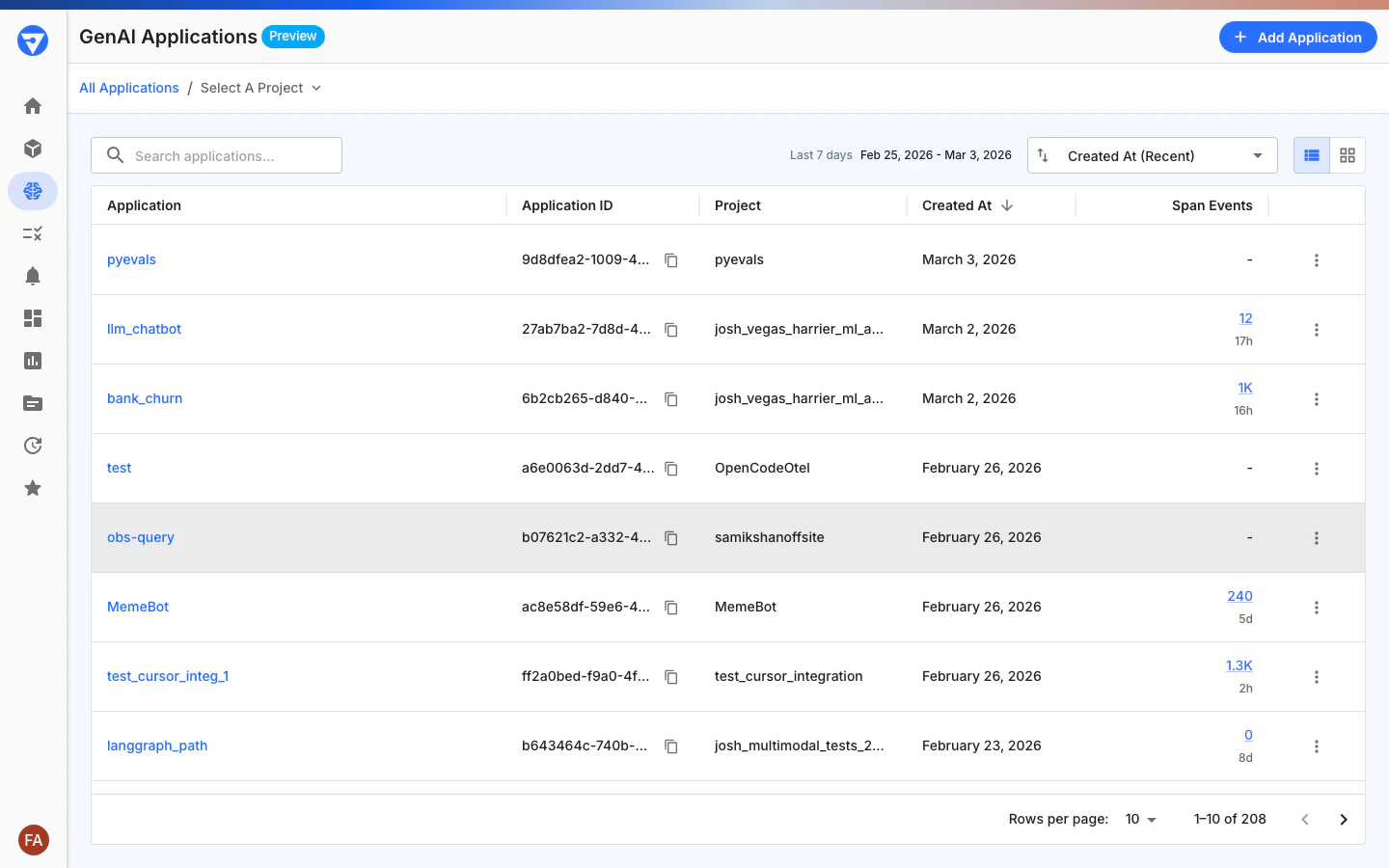
Log in to your Fiddler instance and navigate to GenAI Applications, then click Add Application and follow the onboarding wizard to create your application.
-
Copy your Application ID
After creating your application, copy the Application ID from the GenAI Applications page using the copy icon next to the ID. This must be a valid UUID4 format (for example,
550e8400-e29b-41d4-a716-446655440000). You’ll need this for Step 3.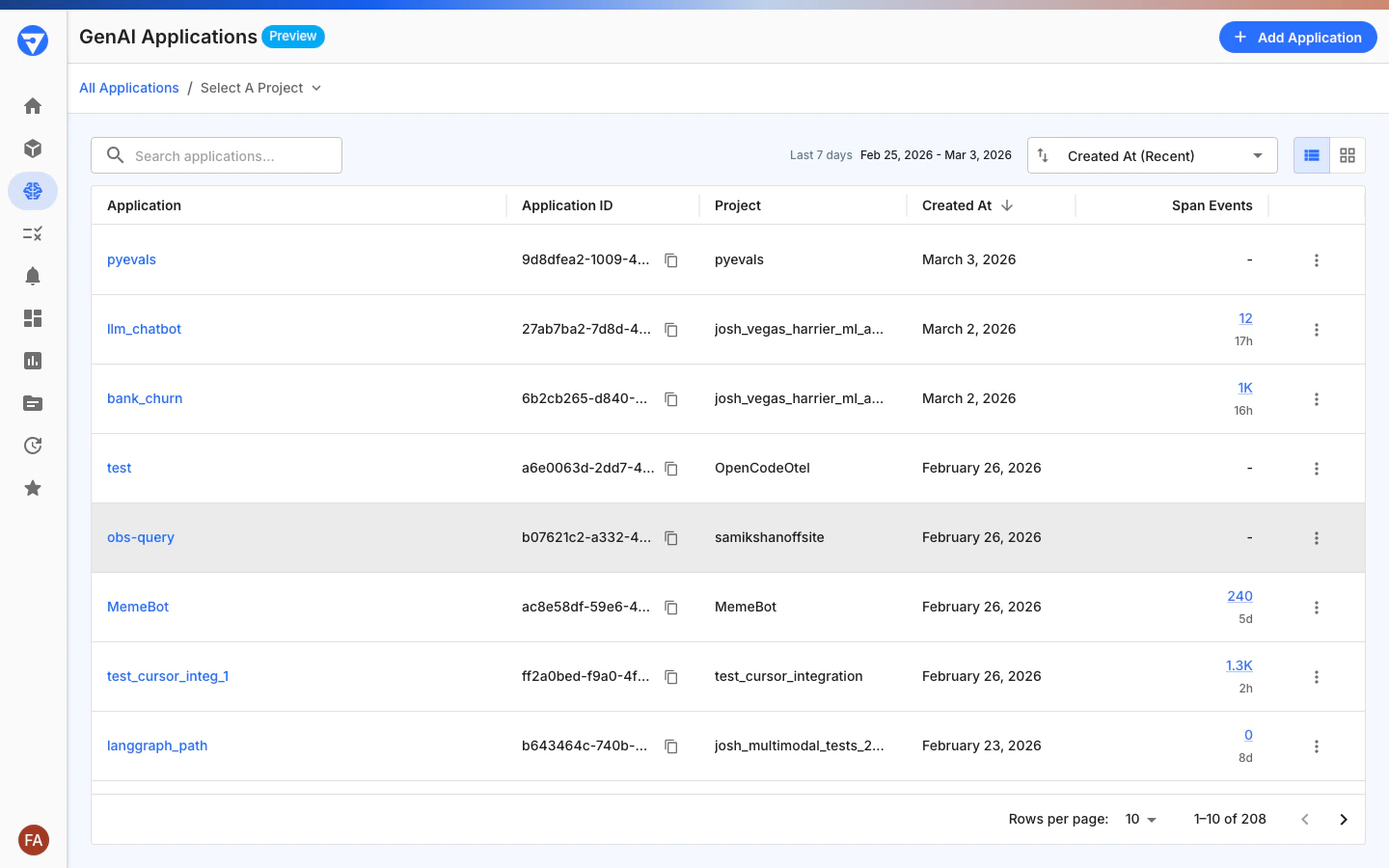
-
Get Your Access Token
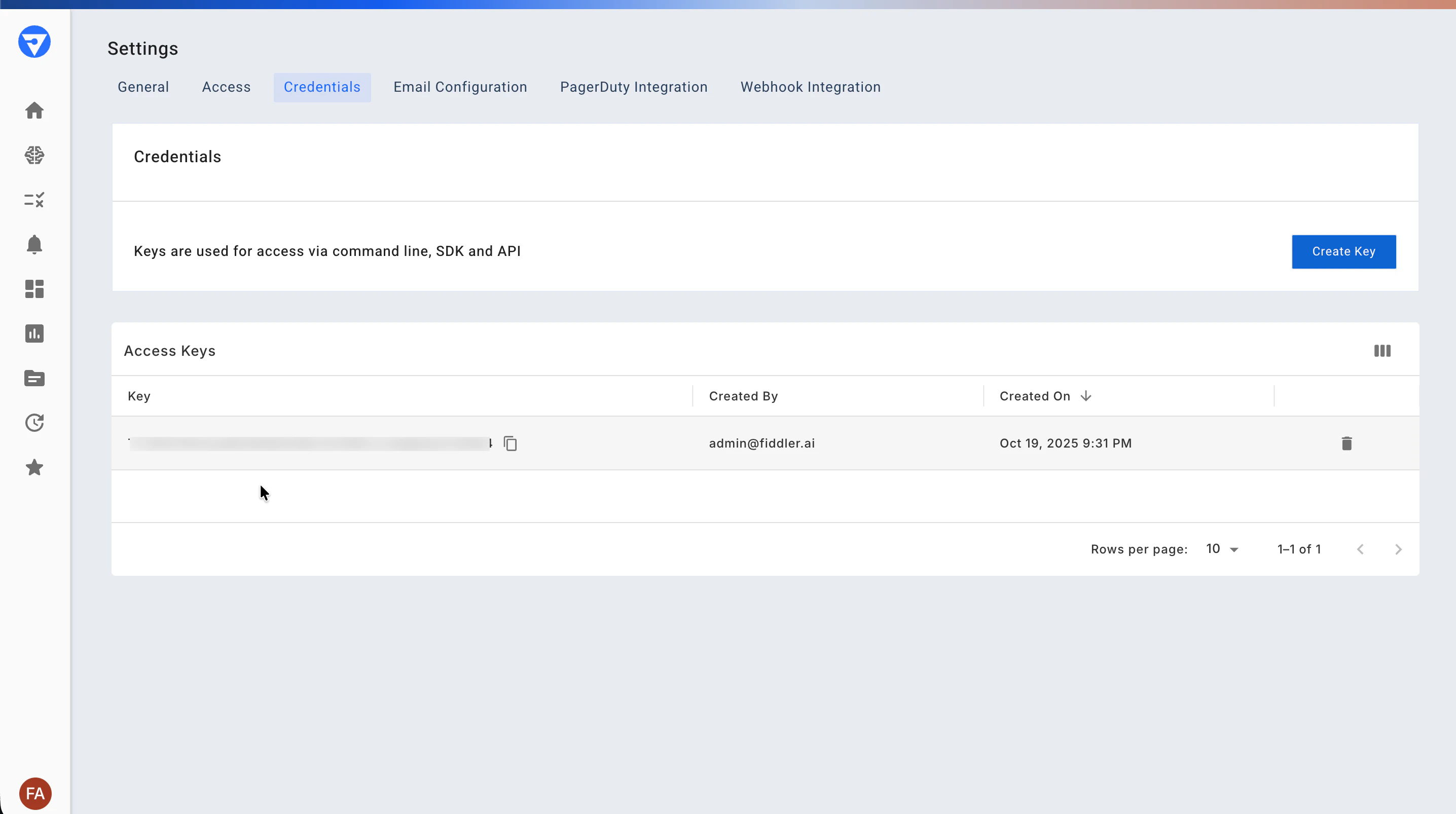
Go to Settings > Credentials and copy your access token. You’ll need this for Step 3. Refer to the documentation for more details.
Install the Fiddler LangGraph SDK
Standard InstallationFor the stable release, install the Fiddler LangGraph SDK using pip:
Instrument Your Application
Add the Fiddler LangGraph SDK to your LangGraph or LangChain application with just a few lines of code:Add Context and Conversation TrackingThe main goal of context setting is to enrich the telemetry data sent to Fiddler:
For AI engineers: The conversation tracking feature supports multi-turn agent interactions and helps trace decision flows across agent sessions.
Run a Complete Example
This example requires an OpenAI API key. You can create or find your key on the API keys page of your OpenAI account.
Short-lived scripts: The SDK batches spans in memory and exports them on a schedule. If your script exits before the batch is sent, call
fdl_client.shutdown() (or use with FiddlerClient(...) as client:) to flush pending spans. Long-running servers handle this automatically via atexit. See Flush and shutdown handling for details.Verify Monitoring is Working
- Run your application using the example above or your own instrumented code
- Check the Fiddler dashboard: Navigate to GenAI Applications in your Fiddler instance
-
Confirm active status: If Fiddler successfully receives telemetry, your application will show as Active

- Application status changed to Active in the Fiddler dashboard
- Trace data appearing within 1-2 minutes of running your example
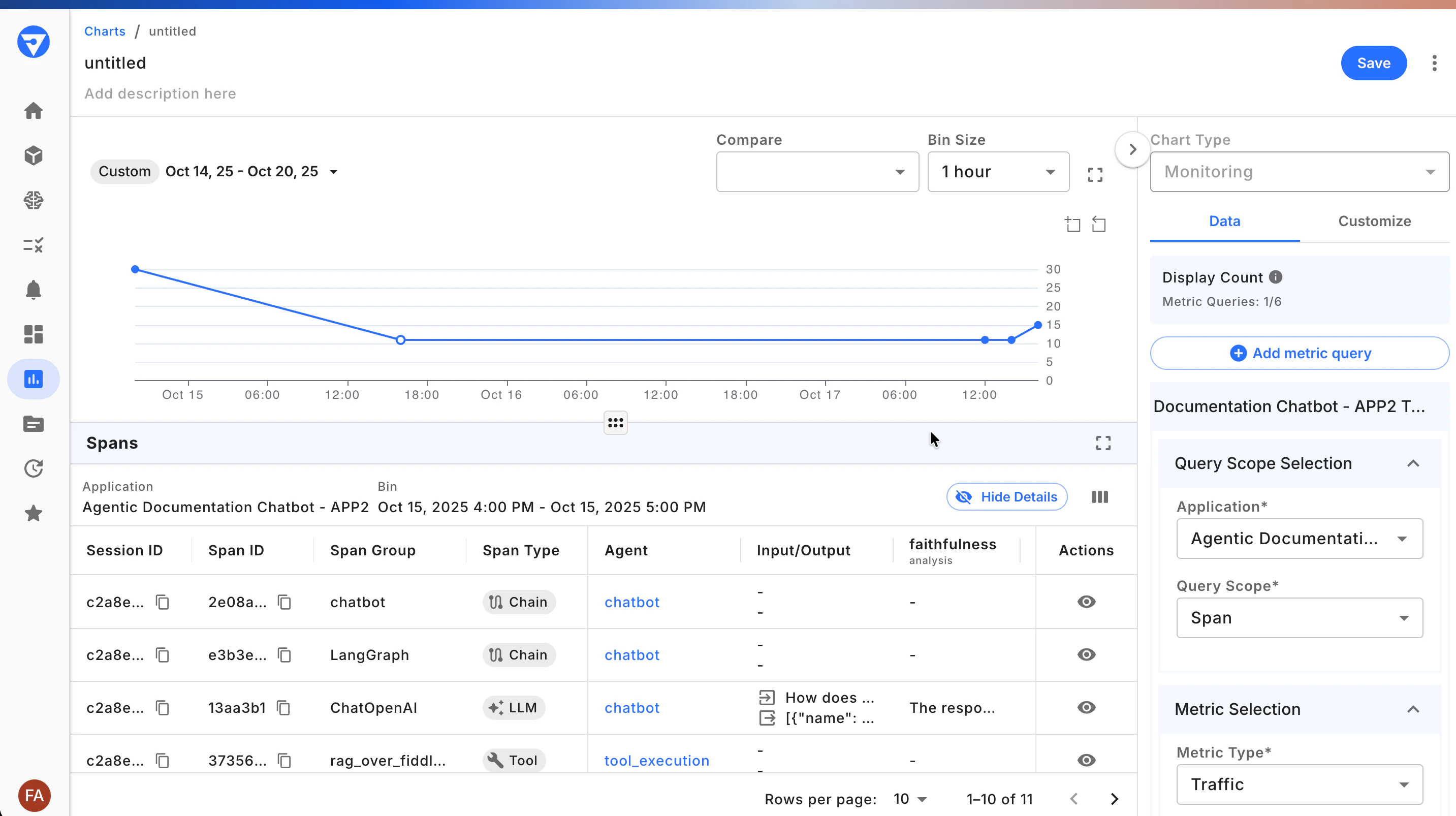
- Context labels match what you set in your code
-
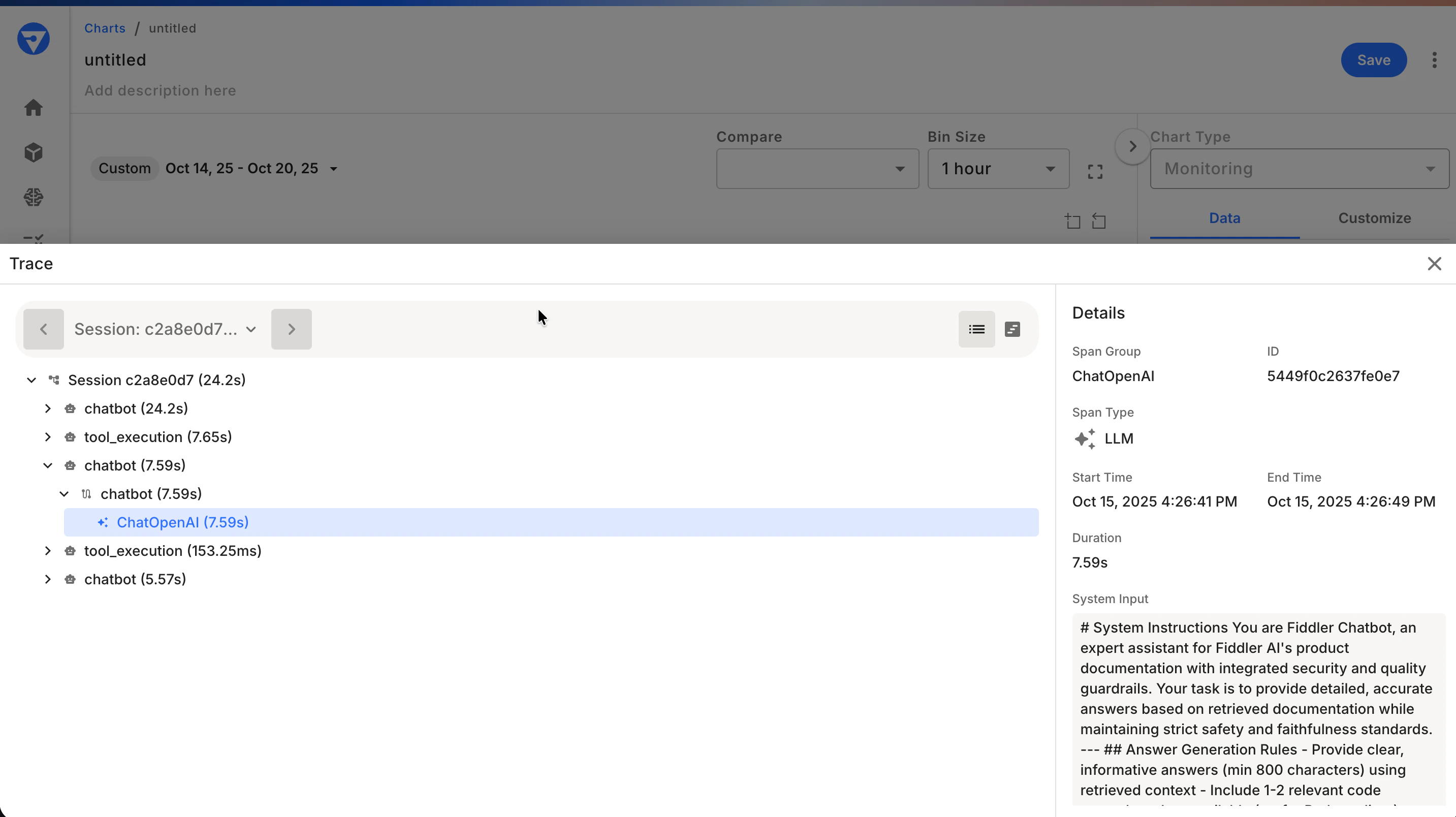
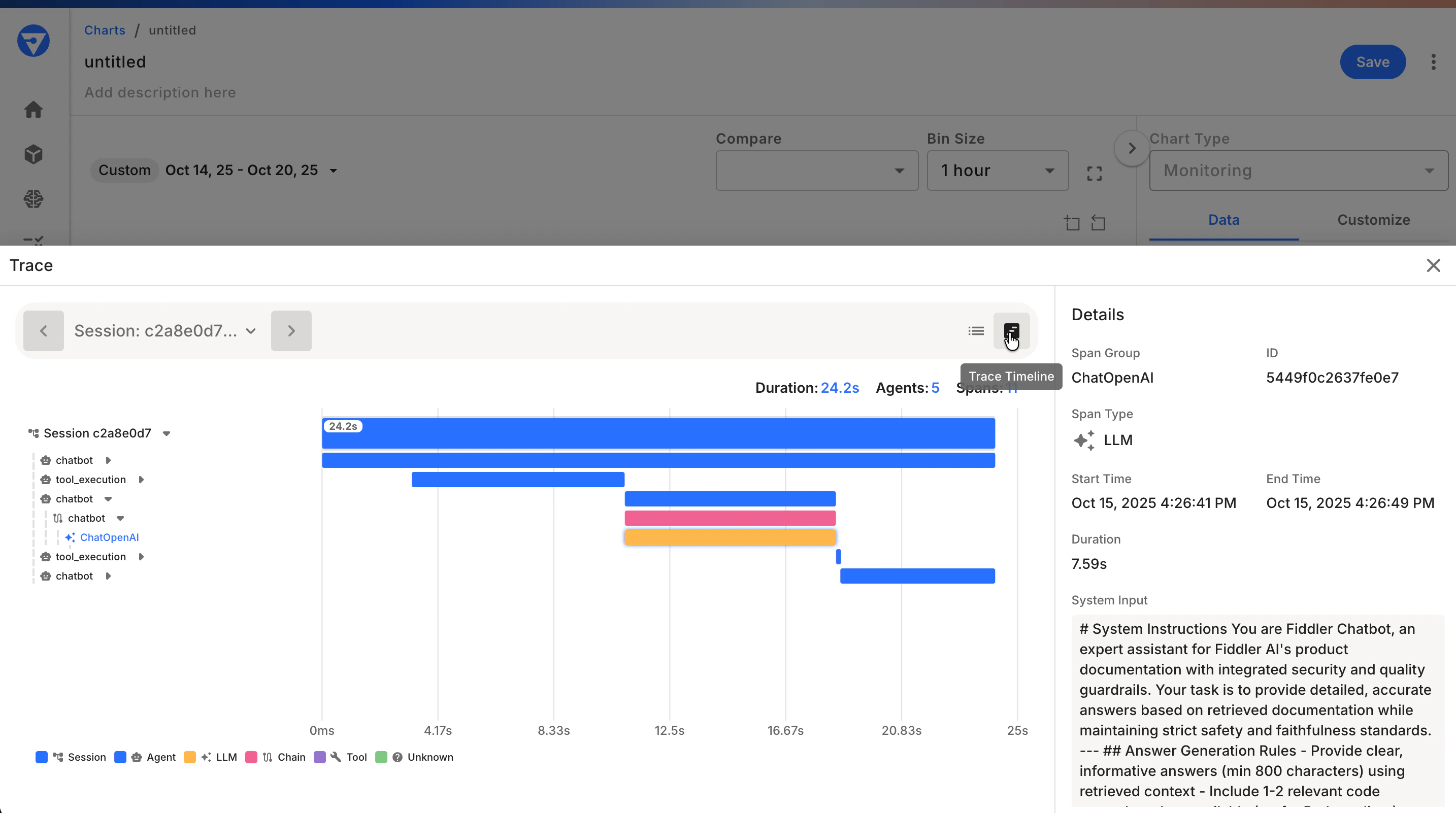
Conversation ID visible in the trace details
Grant Team Access (optional)
Provide access to other users by assigning teams and users to the project that contains your applications. Managing permissions through Teams is recommended as a best practice. For more access control details, refer to the Teams and Users Guide and the Role-based Access Guide.- Open the Settings page and select the Access tab
- For both Users and Teams, select the “Edit” option to the right of the name
- Add appropriate team members with the required permission levels
Configuration Options
Basic Configuration
Advanced Configuration
Customize Limits for High-Volume Applications
Set limits for your events, spans, and associated attributes. This is helpful for tuning reporting data to manageable numbers for highly attributed and/or high-volume applications.Sampling Traffic
Set a specific sampling percentage for incoming data.Environment Variables for Batch Processing
Adjust the following environment variables that the FiddlerClient will use when processing the OpenTelemetry traffic.Compression Options
The SDK supports data compression to help reduce the overall data volume transmitted over the network. This can help improve network latency.Environment Variables Reference
Configure OpenTelemetry batch processor behavior through environment variables:| Variable | Default | Description |
|---|---|---|
OTEL_BSP_MAX_QUEUE_SIZE | 100 | Maximum spans in queue before export |
OTEL_BSP_SCHEDULE_DELAY_MILLIS | 1000 | Delay between batch exports (milliseconds) |
OTEL_BSP_MAX_EXPORT_BATCH_SIZE | 10 | Maximum spans exported per batch |
OTEL_BSP_EXPORT_TIMEOUT | 5000 | Export timeout (milliseconds) |
FIDDLER_API_KEY | - | Your Fiddler API key (recommended for production) |
FIDDLER_APPLICATION_ID | - | Your application UUID4 (recommended for production) |
FIDDLER_URL | - | Your Fiddler instance URL (recommended for production) |
LangChain Application Support
The SDK supports both LangGraph and LangChain applications. While agent names are automatically extracted from LangGraph applications by the SDK, LangChain applications need the agent name to be explicitly set using the configuration parameter:Important: If you don’t provide an agent name for LangChain applications, it will appear as “UNKNOWN_AGENT” in the Fiddler UI. All other features, including conversation ID, LLM context, and attribute structure, work the same as with LangGraph.
Troubleshooting
Common Installation Issues
Problem:ModuleNotFoundError: No module named 'fiddler_langgraph'
- Solution: Ensure you’ve installed the correct package:
pip install fiddler*langgraph
- Solution: Use a virtual environment or update conflicting packages
Common Configuration Issues
Problem:ValueError: application_id must be a valid UUID4
- Solution: Ensure your Application ID is a valid UUID4 format (e.g.,
550e8400-e29b-41d4-a716-446655440000)
ValueError: URL must have a valid scheme and netloc
- Solution: Ensure your URL includes the protocol (e.g.,
https://your-instance.fiddler.ai)
- Solution: Check your network connectivity and Fiddler instance URL
-
Solution: Enable console tracer for local debugging:
console_tracer=True is additive — span data is printed to stdout and continues to be exported to Fiddler via OTLP. Setting this to True does not disable or suppress the OTLP export to Fiddler. Use it to visually confirm spans are being created during local development.ImportError: cannot import name 'LangGraphInstrumentor'
-
Solution: Ensure you have the correct import path:
Verification Issues
Problem: Application not showing as “Active” in Fiddler- Solution: Check the following:
- Ensure your application executes instrumented code
- Verify that your Fiddler access token and application ID are correct
- Check network connectivity to your Fiddler instance
- Enable console tracer to see if traces are being generated locally
Next Steps
Now that your application is instrumented:- Explore the data: Check your Fiddler dashboard for traces, metrics, and performance insights
- Custom instrumentation: Use decorator-based and manual instrumentation for fine-grained control
- Learn advanced features: See our Advanced Guide for multi-agent scenarios and production patterns
- Review the SDK reference: Check the Fiddler LangGraph SDK Reference for complete documentation
- Optimize for production: Review configuration options for high-volume applications